Make a Slack Bot That Survives School Wi-Fi
Author: Shreeansh BharadwajIntroduction
If you already use Slack, a bot can handle the boring stuff for you: reminders, quick replies, status updates, and other tiny jobs nobody wants to do by hand.
This guide keeps the setup simple on purpose. We are using Slack’s Socket Mode with
@slack/bolt, which means Slack connects out to your bot instead of trying to reach a
public web server on your laptop. That is the important bit for school networks, because
it skips the whole ngrok-and-firewall headache.
What you’re building
By the end of this tutorial, you will have a bot that:
- runs from your own computer
- listens for
@mentionmessages in Slack - replies without needing a public URL
What you need first
Before you start, make sure you have:
- A Slack workspace where you can install apps
- Permission to create Slack apps
- Node.js, which is the thing that lets JavaScript run on your computer instead of only in a browser
- A code editor like VS Code
- A project folder where you can keep secrets in a
.envfile
If Node.js, environment variable, or .env sounds fake and annoying, do not worry.
Think of it this way:
- Node.js runs the bot
.envstores private values outside your code- Git should never upload
.envto GitHub
If Git is also fuzzy, the Git guide explains .gitignore in more detail.
Create the Slack app
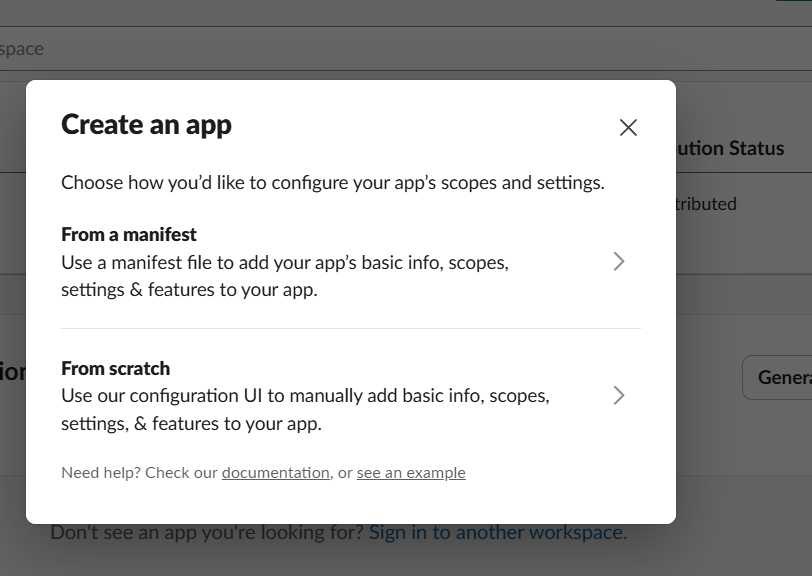
- Go to the Slack API dashboard.
- Click Create New App.
- Choose From scratch.
- Name the app and pick the workspace you want to test in.
Turn on Socket Mode
Open Socket Mode in your app settings and enable it.
That is what lets the app connect to Slack over a WebSocket instead of waiting for Slack to send requests to a public URL. In other words: no request URL, no tunnel software, and way less school-wifi drama.
Add bot permissions
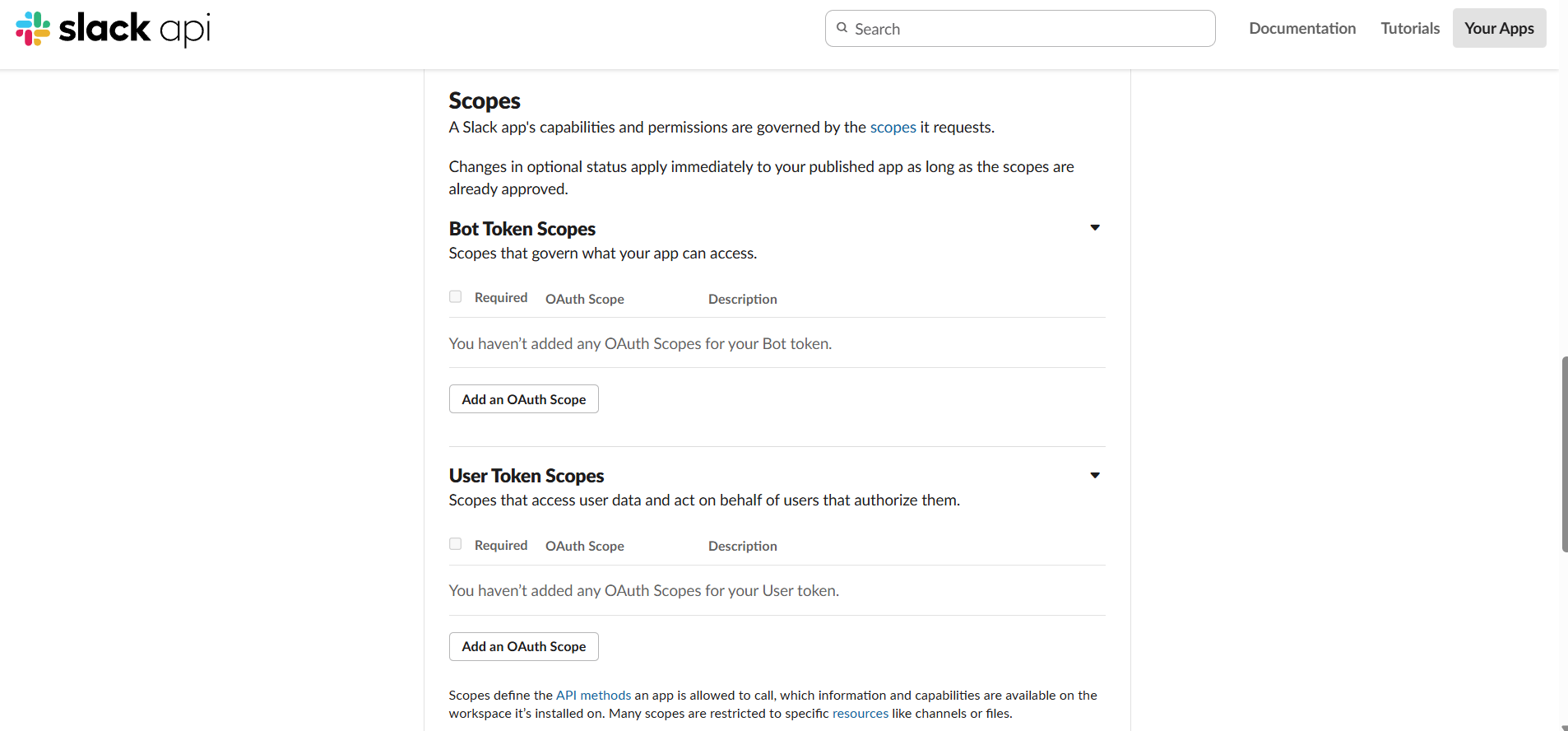
Open OAuth & Permissions and add the permissions your bot needs.
Start with these:
chat:writelets the bot send messagesapp_mentions:readlets the bot see when someone tags it
If Slack asks you to reinstall the app after changing scopes, do it. That part matters.
Subscribe to mentions
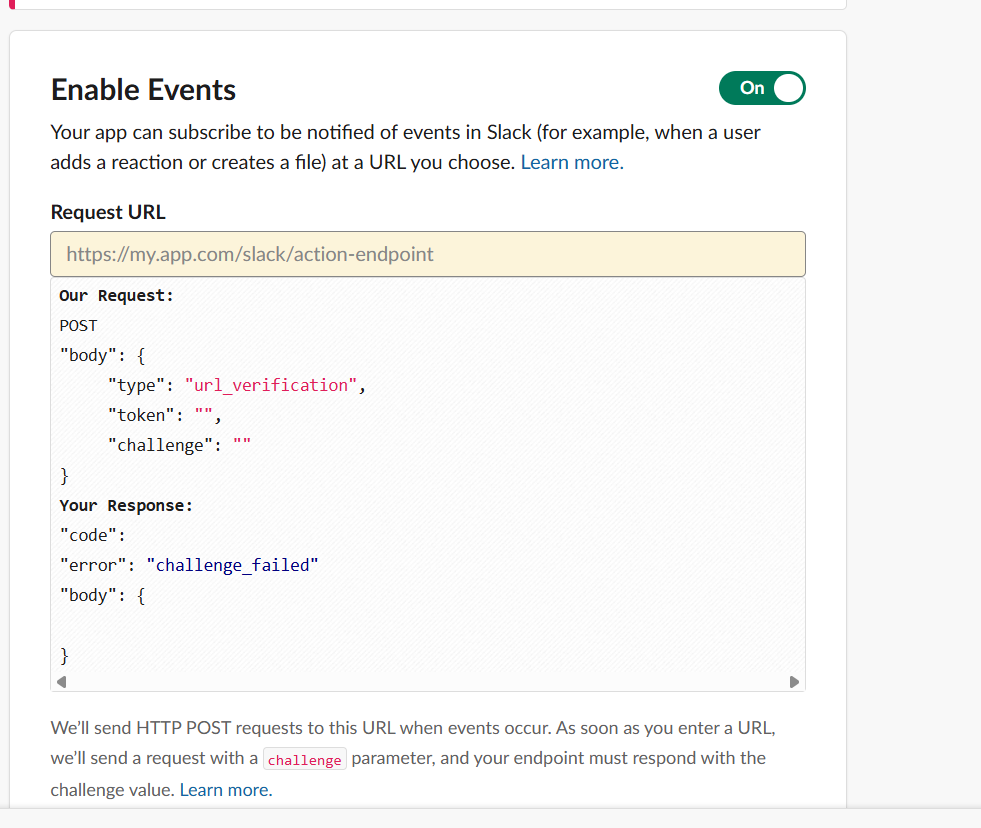
If you want the bot to respond when someone tags it, subscribe to app_mention in
Event Subscriptions.
With Socket Mode enabled, you do not need a public Request URL for this tutorial.
Install the bot
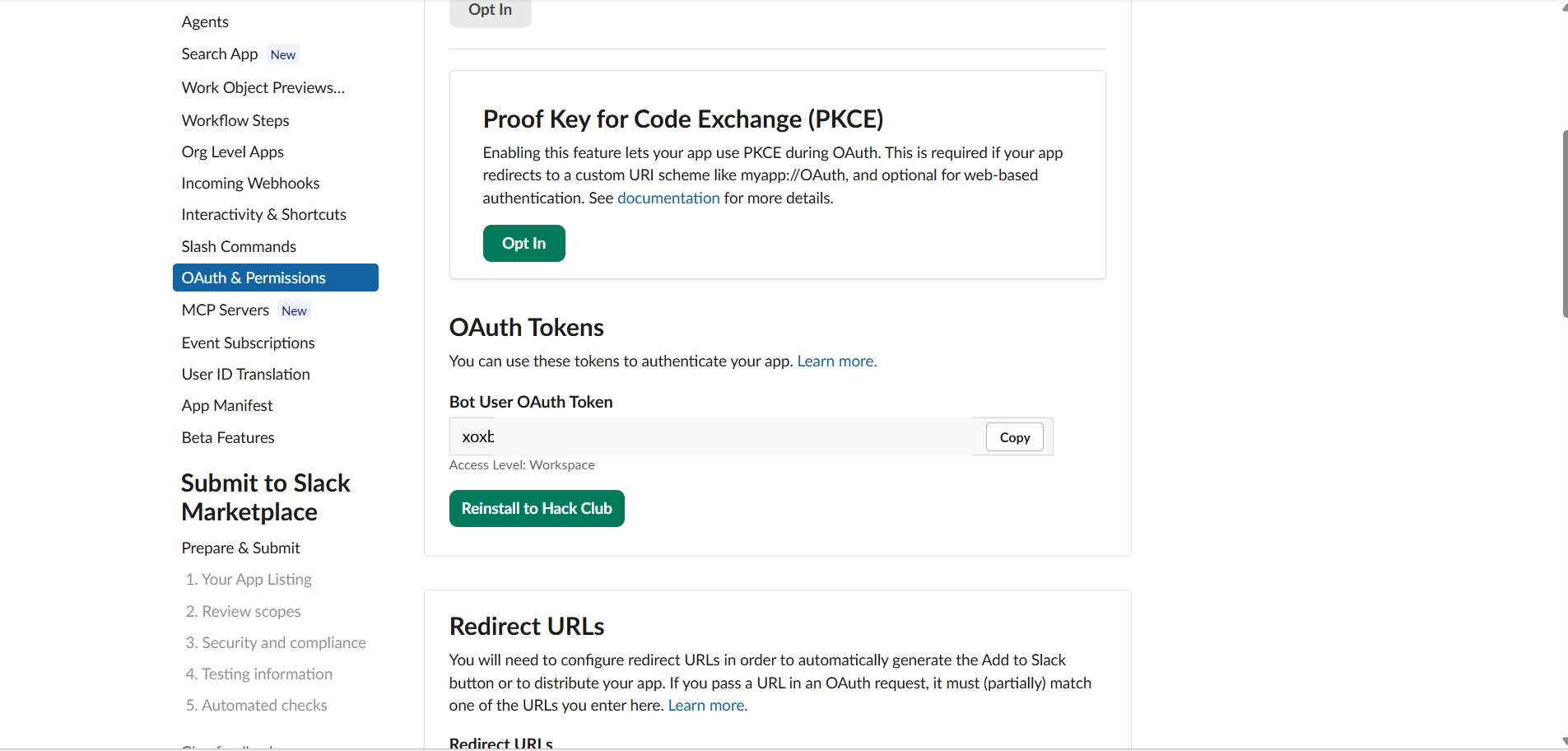
After the scopes are set, install the app to your workspace.
- Open Install App or OAuth & Permissions.
- Click Install to Workspace.
- Approve the requested permissions.
- Copy the bot token that starts with
xoxb-. - Create or copy the app-level token that starts with
xapp-.
You will use both tokens in your local project:
SLACK_BOT_TOKENis the bot’s login for Slack’s Web APISLACK_APP_TOKENis what Socket Mode uses to connect your app to Slack
Set up your project
Create a simple Node.js project and install the Slack SDK:
npm init -y
npm install @slack/bolt dotenv
Create a .env file in the root of your project:
SLACK_BOT_TOKEN=xoxb-your-bot-token
SLACK_APP_TOKEN=xapp-your-app-token
Now add .env to .gitignore so Git skips it:
.envThat way your secret tokens stay on your machine instead of getting pushed online by accident.
Add the bot code
Create a file like bot.js:
require("dotenv").config();
const { App } = require("@slack/bolt");

const app = new App({
  token: process.env.SLACK_BOT_TOKEN,
  socketMode: true,
  appToken: process.env.SLACK_APP_TOKEN,
});

app.event("app_mention", async ({ event, say }) => {
  await say(`Hey <@${event.user}>, I heard you.`);
});

(async () => {
  await app.start();
  console.log("Slack bot is running");
})();
What this does:
- loads your secrets from
.env - connects to Slack with Socket Mode
- listens for mentions
- replies in the channel when someone tags the bot
Try it
Run your bot:
node bot.jsThen invite the bot into a channel if it is not already there, mention it, and see if it replies.
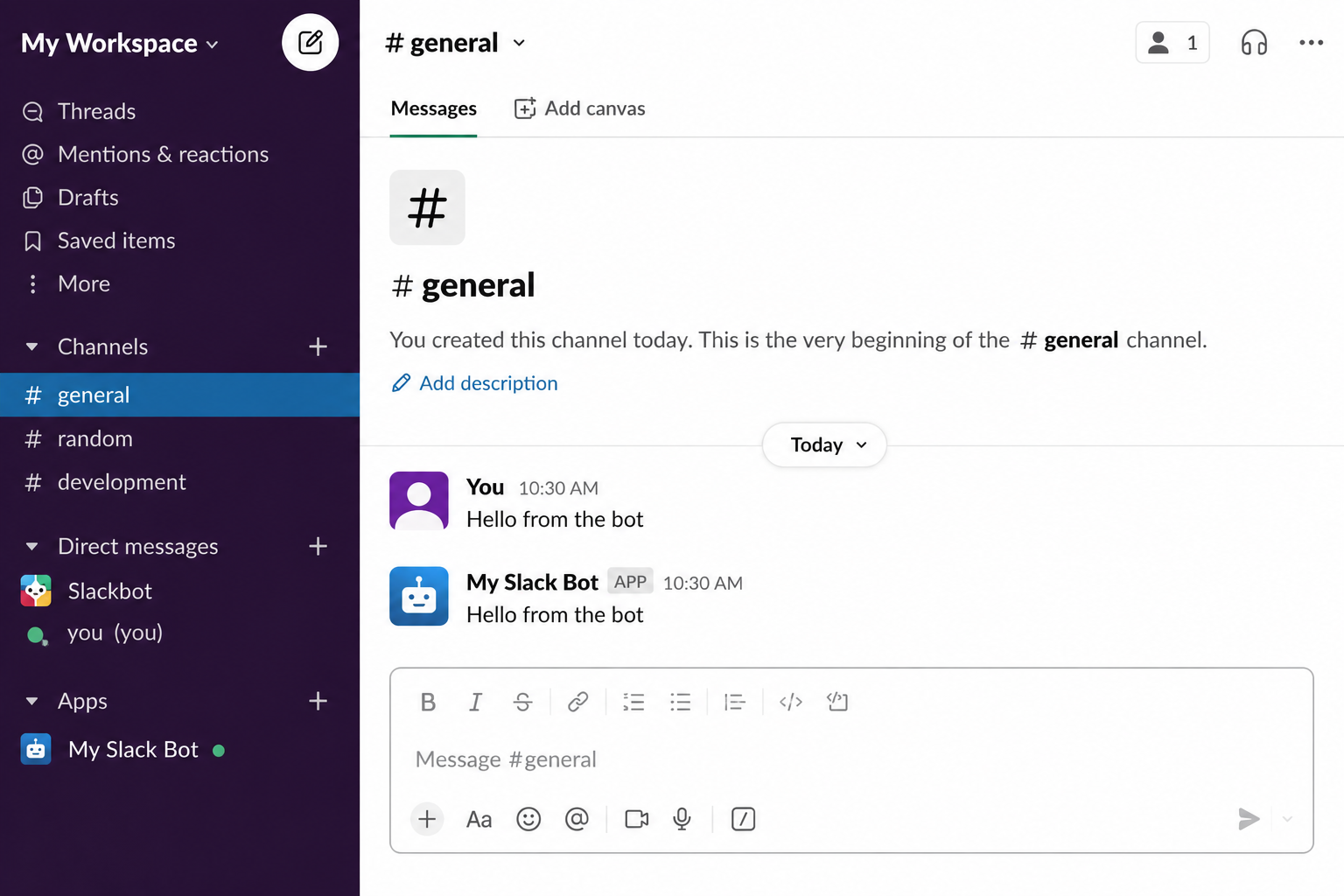
If it works, you now have the basic shape of a real Slack bot.
Troubleshooting
Common beginner problems
- If the bot says a token is missing, check your
.envfile spelling exactly.SLACK_BOT_TOKENandSLACK_APP_TOKENhave to match character for character.- If the bot starts but never replies, make sure Socket Mode is enabled, the app was reinstalled after adding scopes, and
app_mentionis subscribed.- If Slack says it cannot connect, double-check that the app-level token starts with
xapp-and the bot token starts withxoxb-.- If Git wants to upload your secrets, add
.envto.gitignoreand do not commit it.- If mentioning the bot does nothing, make sure the bot was invited into that channel first.
Summary
For a personal project, the cleanest Slack bot setup is usually:
- create the app
- turn on Socket Mode
- add the bot scopes
- store the tokens in
.env - use
@slack/boltto listen for mentions
That gets you a bot that works without public URLs, tunnel software, or firewall fights.